The short answer.
- Block a site all the time: use Screen Time, which is built into macOS.
- Block distractions only while you work: use a focus timer such as FunNotch, which is free.
- Block a site for every app on the Mac: edit the hosts file in Terminal.
1. Screen Time (built in).
Screen Time can restrict specific websites in Safari and is the right tool for a permanent block or for a child’s account.
- Open System Settings → Screen Time.
- Click Content & Privacy and turn it on, then open App Store, Media, Web, & Games.
- Set web content to Limit Adult Websites and click Customize.
- Under Restricted, add the addresses you want to block and click Done.
Set a Screen Time passcode if you want the block to be hard to undo. Coverage in browsers other than Safari has varied between macOS versions, so test the browsers you use. Apple’s guide has the current wording.
2. A focus timer that blocks sites while you work.
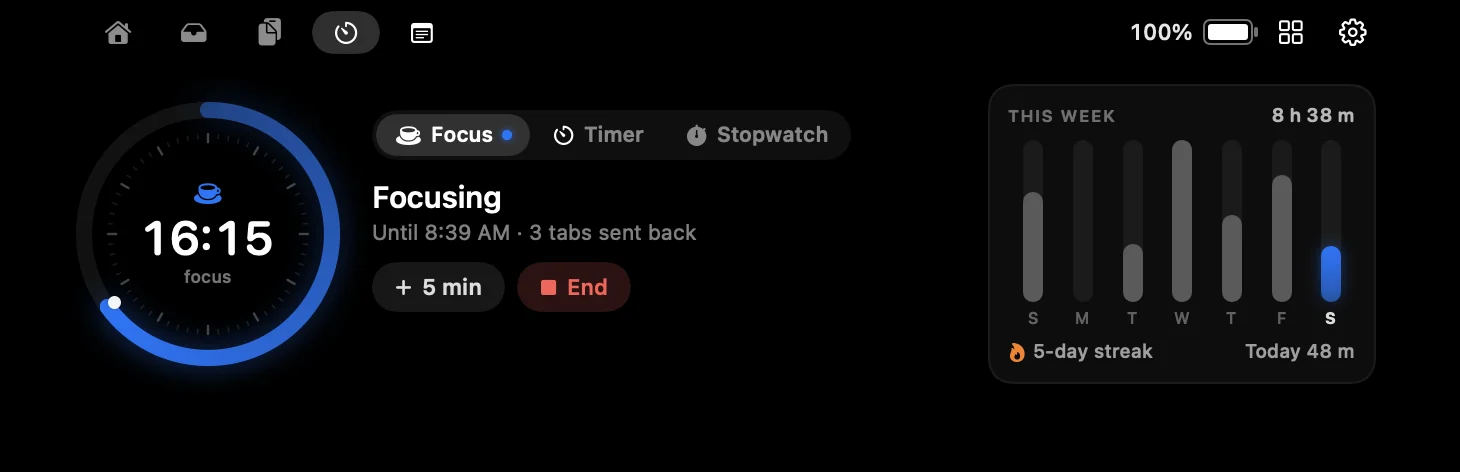
A permanent block is the wrong tool if you still want the site in the evening. A focus timer blocks your list only while a session is running.
FunNotch is a free, open-source app that does this from the MacBook notch. Start a session and any blocklisted tab in Safari, Chrome, Brave, Edge or Arc is sent to a local “blocked” page, and blocklisted apps are hidden. When the timer ends, everything works again.
- Install FunNotch and open the Focus tab in the notch.
- Add the sites and apps you want kept away, and switch on Block sites.
- Pick a length, or turn on Pomodoro cycles, and press Start.
macOS asks for the Automation permission the first time, because that is how FunNotch sees your browser tabs. More about the focus timer.
3. The hosts file (every app, needs Terminal).
The hosts file blocks a site for the whole Mac, in every browser and app. It needs an administrator password and a little care.
- Open Terminal and run
sudo nano /etc/hosts, then enter your password. - On a new line at the end, add
0.0.0.0 example.comand a second line for0.0.0.0 www.example.com, using the site you want to block. - Press Control-O and Return to save, then Control-X to exit.
- Flush the DNS cache:
sudo dscacheutil -flushcache; sudo killall -HUP mDNSResponder
To undo it, delete the lines you added and flush the cache again. Browsers that use their own secure DNS can ignore the hosts file, so check that the block works in each one.
Which should you use?
| Method | Blocks | When | Effort |
|---|---|---|---|
| Screen Time | Websites, mainly in Safari | Always | A few clicks |
| FunNotch focus timer | Websites in five browsers, and apps | Only during a session | Install an app |
| Hosts file | Websites in every app | Always | Terminal and an admin password |
Common questions.
Can I block websites on a Mac without installing anything?
Yes. Screen Time and the hosts file are both part of macOS. Screen Time is easier; the hosts file covers every app.
How do I block websites only during work hours?
Use a focus timer that blocks sites while a session runs, such as FunNotch, or schedule Downtime in Screen Time for fixed hours.
Does FunNotch block websites in Chrome?
Yes. It works in Safari, Chrome, Brave, Edge and Arc, and it can hide distracting apps as well.