The short answer.
- On macOS 26 Tahoe or later: turn on clipboard history in System Settings → Spotlight, then press Command-Space followed by Command-4.
- On macOS 14 Sonoma or 15 Sequoia: there is no built-in history. Install an app that keeps one.
- Either way: a clipboard app gives you search, pinning and control over what is kept.
1. Use Spotlight (macOS 26 Tahoe and later).
Apple added clipboard history to Spotlight in macOS 26 Tahoe. It is off until you enable it.
- Turn it on. Open System Settings → Spotlight and enable the clipboard option near the bottom of the pane. The same place lets you choose how long items are kept.
- Open it. Press Command-Space to open Spotlight, then Command-4 to switch to the clipboard.
- Paste. Pick an entry and press Return to paste it.
It is the simplest option if you are on Tahoe. Items are only kept for the period you choose, there is no pinning, and it keeps whatever you copy, so think about that before copying passwords.
2. Use a free notch app (macOS 14 and later).
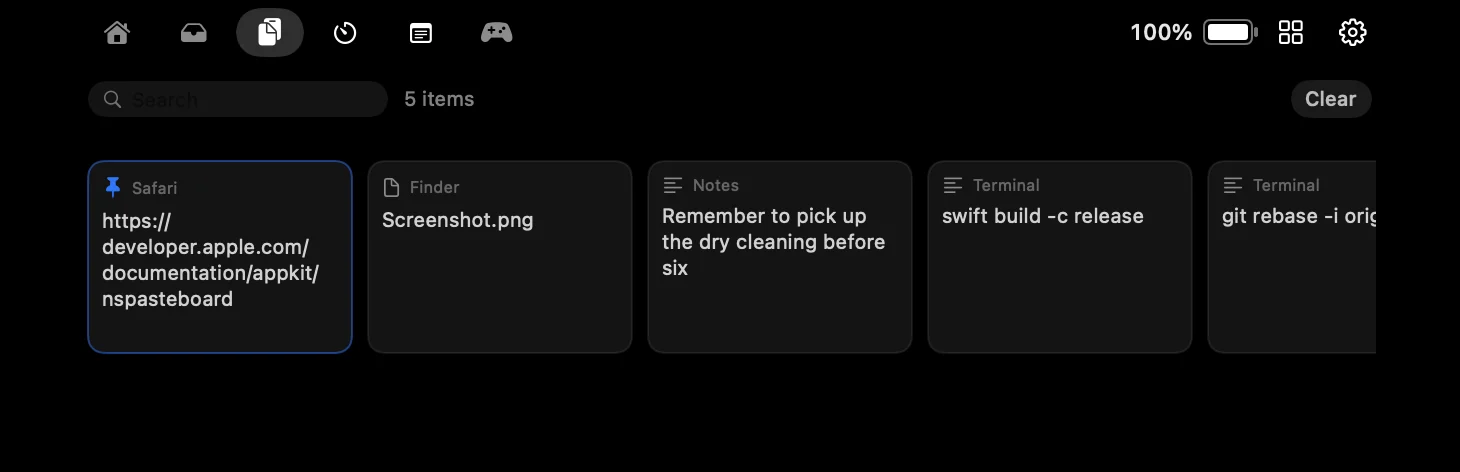
FunNotch is a free, open-source app that puts a clipboard history in the MacBook notch, and it works back to macOS 14 Sonoma. Hover the notch, open the Clipboard tab, and the last fifty things you copied are there.
- Search the history as you type.
- Pin the entries you reuse so they never expire.
- Passwords are skipped: anything a password manager marks as concealed is not recorded.
- History expires after 24 hours by default.
You also get the rest of the app: music controls, a file shelf and a focus timer. More about FunNotch’s clipboard history.
3. Use a dedicated clipboard manager.
If the clipboard is the only thing you care about, a dedicated manager does more: snippets, rules, sync between devices and keyboard-only pasting. Maccy is a popular free and open-source one, and Paste and Raycast are well-known paid or freemium options. They take a little more setting up and are worth it if you paste from history all day.
Which should you use?
| Option | Cost | Works on | Best for |
|---|---|---|---|
| Spotlight | Built in | macOS 26 or later | Occasional use with nothing to install |
| FunNotch | Free | macOS 14 or later | History plus music, files and focus in one place |
| Dedicated manager | Free to paid | Varies | Heavy use, snippets and sync |
Common questions.
Does the Mac have a clipboard history?
From macOS 26 Tahoe, yes: Spotlight can keep one once you turn it on in System Settings. Earlier versions of macOS keep only the most recent item.
What is the shortcut for clipboard history on a Mac?
On macOS 26 Tahoe or later, press Command-Space to open Spotlight and then Command-4. Third-party apps use their own shortcuts or, in FunNotch’s case, a hover over the notch.
Is it safe to keep a clipboard history?
It depends on what is kept. Choose a tool that skips password-manager entries and expires old items, and avoid one that sends your history anywhere. FunNotch keeps its history on your Mac only.